

How to Configure Cambium Policy Based Automation (PBA Auto-VLAN)
A practical Elmdale IT Services guide to using Cambium Policy Based Automation with cnMatrix switches and cnPilot access points, including LLDP validation screenshots and troubleshooting checks.
Cambium Policy Based Automation, also known as PBA Auto-VLAN or Auto-Attach, can reduce manual switch port configuration by allowing a cnMatrix switch to dynamically learn VLAN requirements from a directly connected cnPilot access point.
Before you start
- Use supported cnMatrix and cnPilot firmware.
- Confirm LLDP is enabled.
- Confirm Auto-Attach is enabled on the switch.
- Put the AP Ethernet interface into trunk mode.
- Prepare a clear VLAN and SSID design before rollout.
Step 1 – Confirm the topology
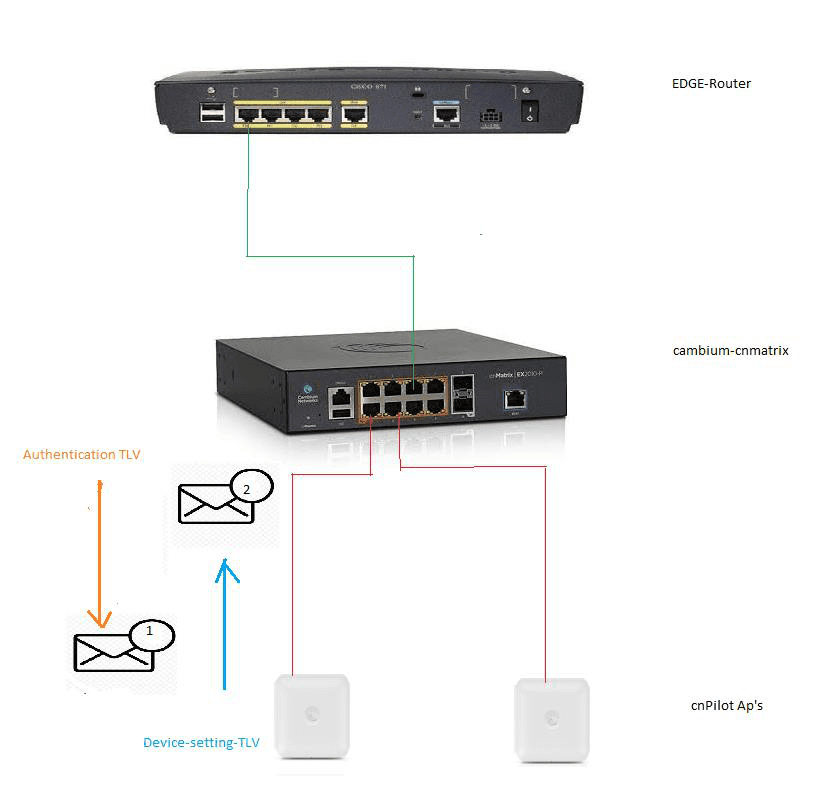
The AP should be directly connected to the cnMatrix switch port that will receive and apply the dynamic policy.
Step 2 – Understand the LLDP workflow
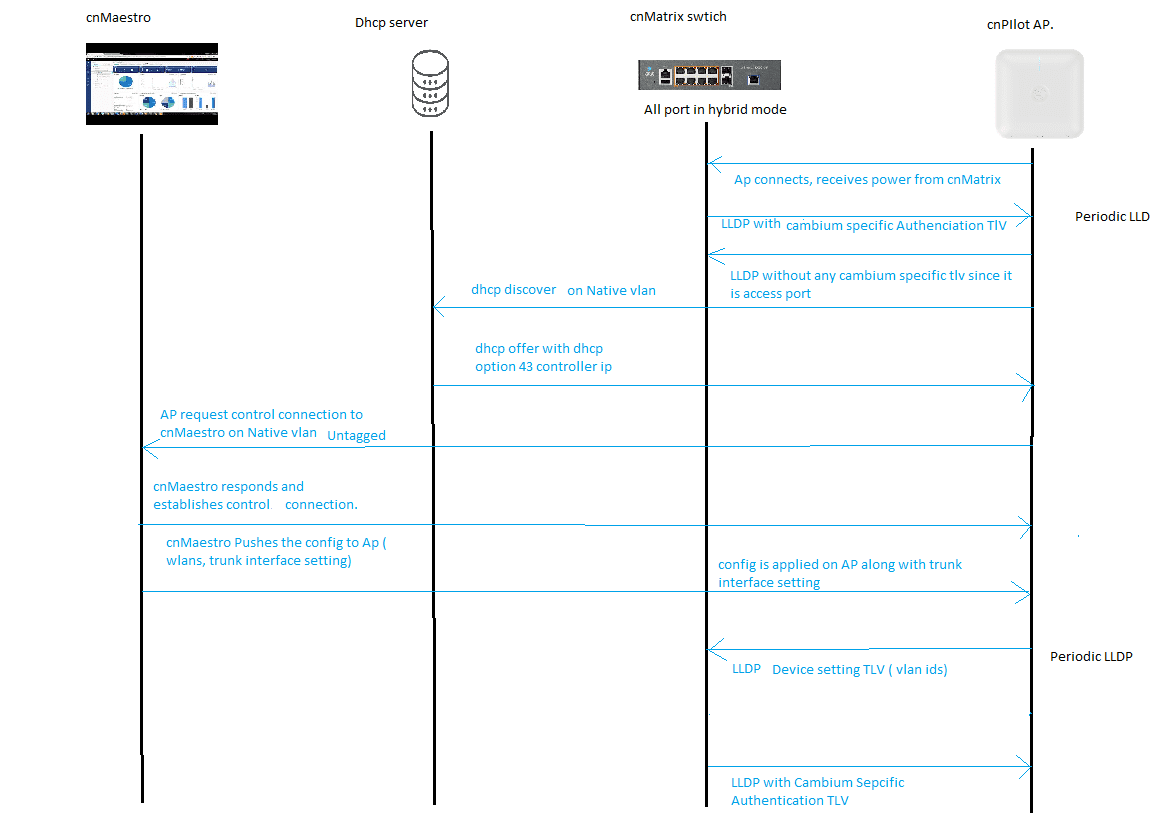
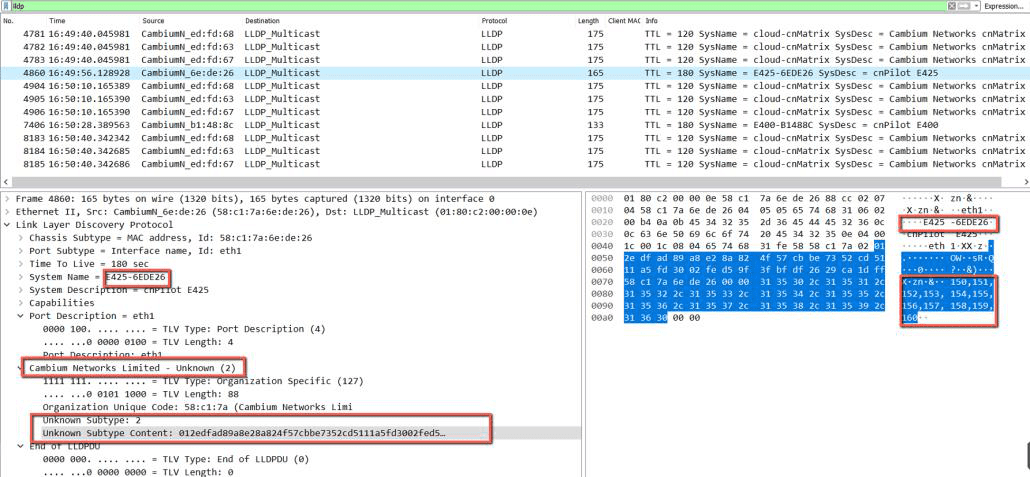
The switch sends a PBA authentication TLV. The AP responds with a device settings TLV containing the VLAN list. The switch authenticates and processes this information before applying a dynamic policy to the ingress port.
Step 3 – Check Auto-Attach on cnMatrix
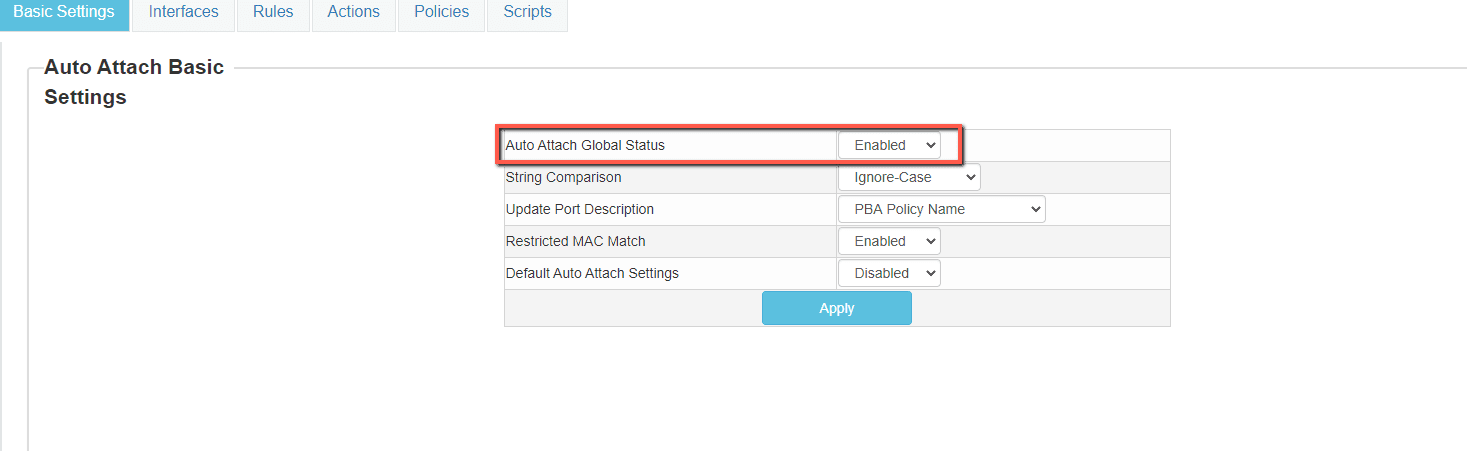
Verify that Auto Attach Global Status is enabled and that the target AP port is operational.
Step 4 – Check LLDP on cnPilot
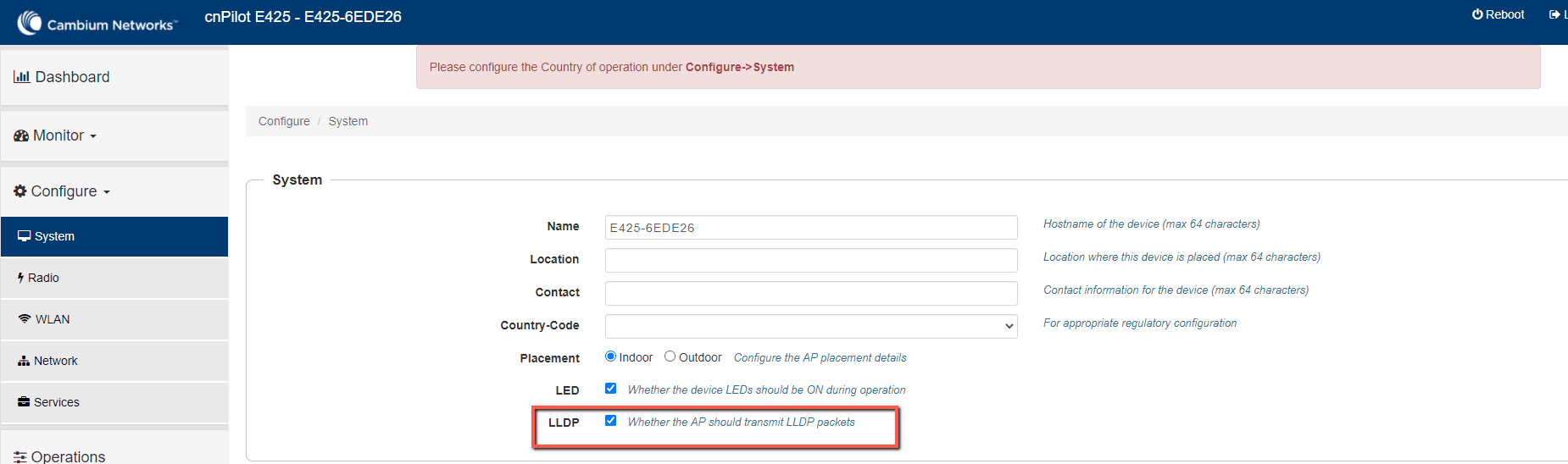
Confirm LLDP is enabled on the AP. The source guide notes that LLDP is enabled by default on cnPilot APs, but it should still be checked during commissioning.
Step 5 – Configure the AP Ethernet interface
The AP Ethernet interface must be in trunk mode for the PBA Device Settings TLV to be generated. Add the VLANs required by the SSIDs and services being carried by the AP.
- If Native VLAN Tagged is used, include the native VLAN ID in the allowed VLAN list.
- Keep the VLAN list within the supported maximum of 20 VLANs per Ethernet port.
- Document the intended VLAN list before deployment.
Step 6 – Connect the AP and validate LLDP
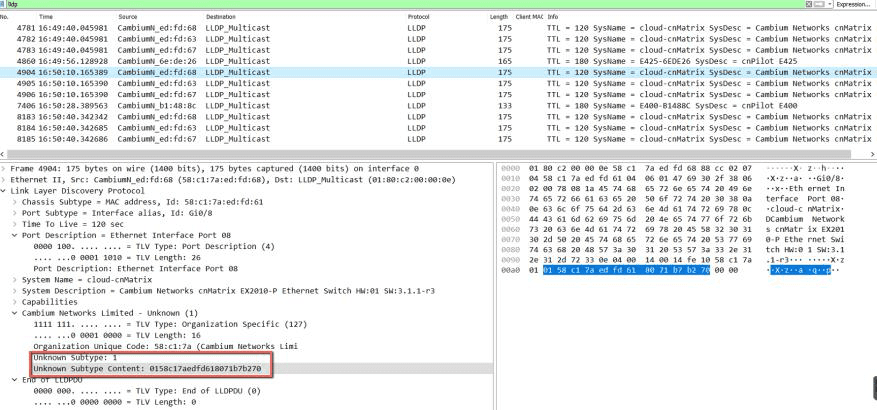
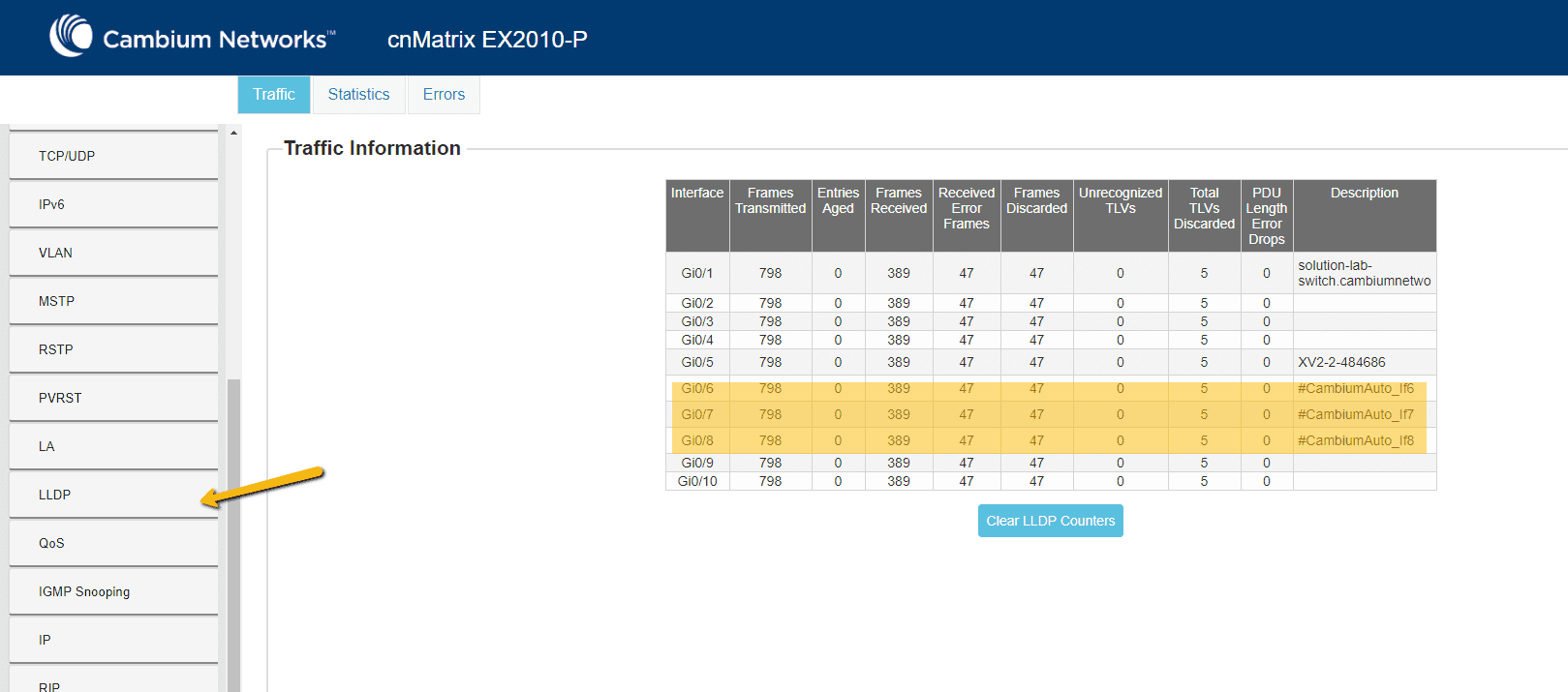
Patch the AP into the target switch port and allow LLDP to exchange. Then confirm the AP appears as an LLDP neighbour.
show lldp neighbors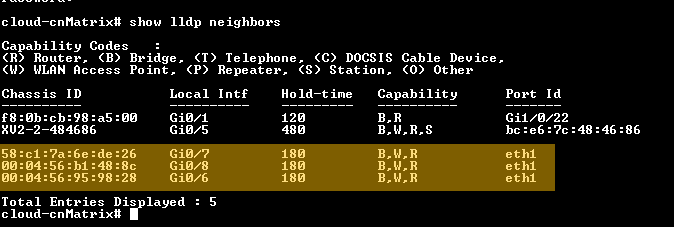
Step 7 – Confirm learned VLANs
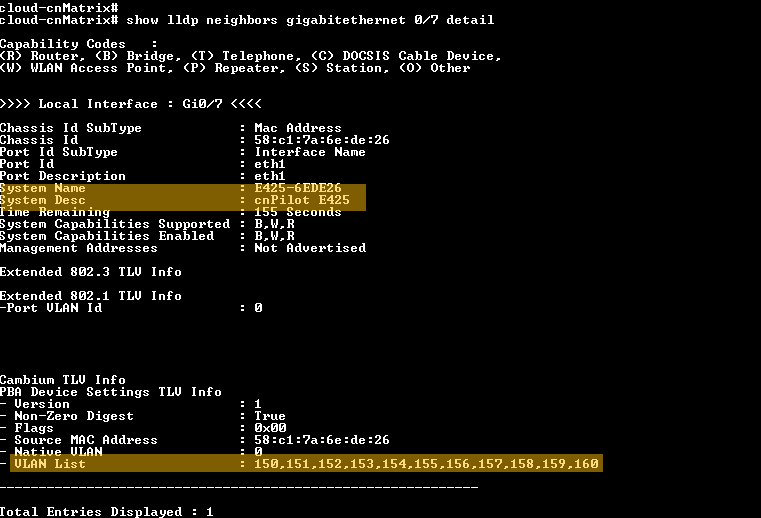
Use LLDP neighbour detail output to confirm that the switch has learned the VLAN list from the AP.
show lldp neighbors gigabitethernet 0/6 detail
show lldp neighbors gigabitethernet 0/7 detail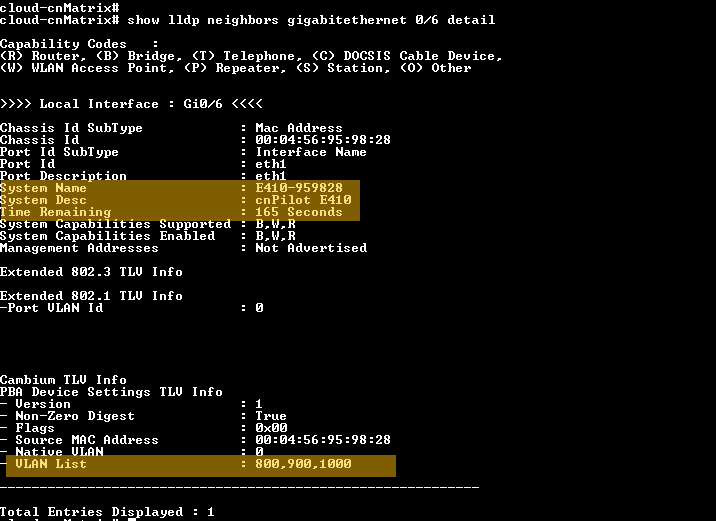
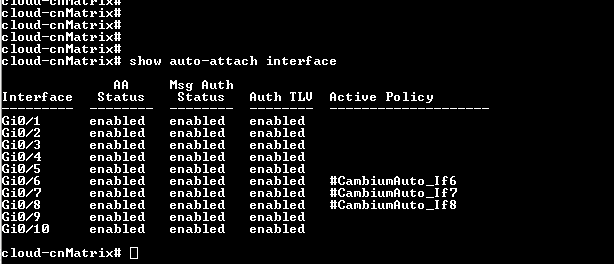
Step 8 – Confirm Auto-Attach policy applied
The switch should create a generated policy and apply it to the ingress port where the AP is connected.
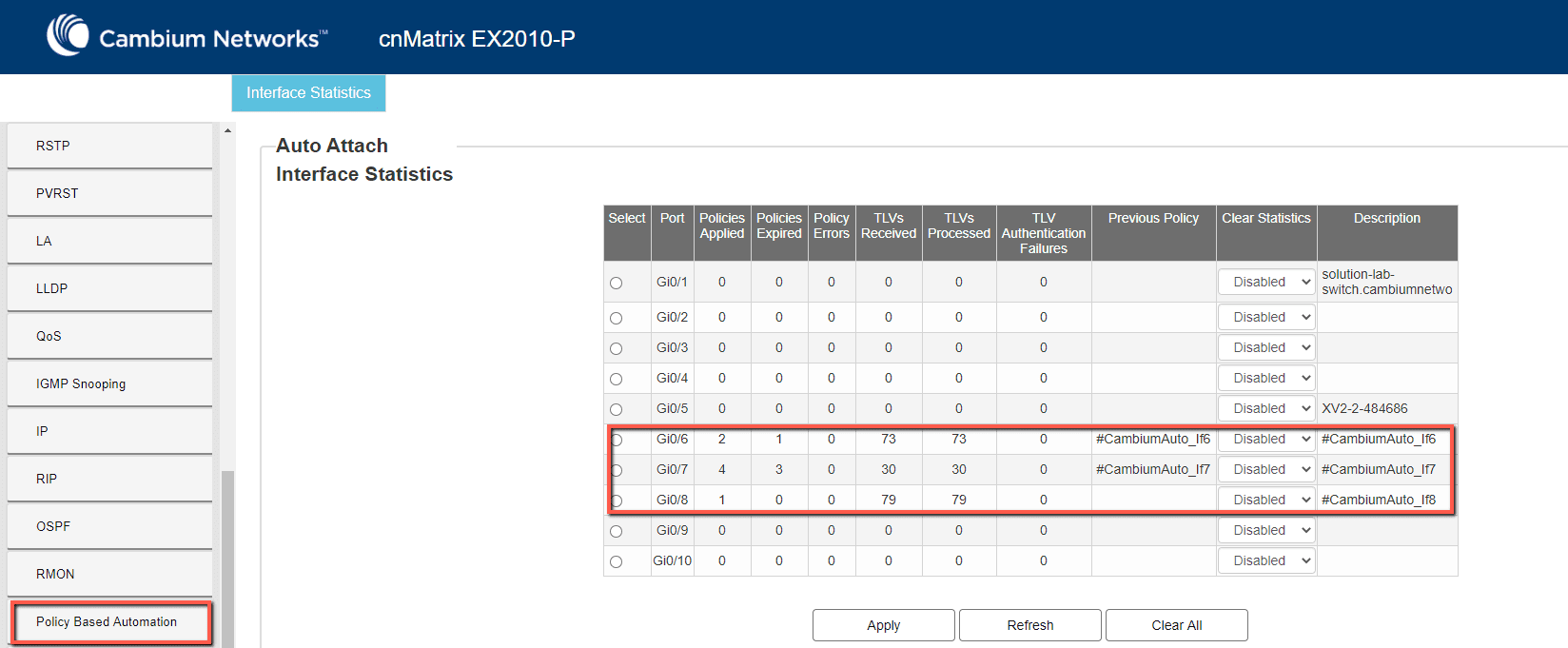
show auto-attach policy
show auto-attach interface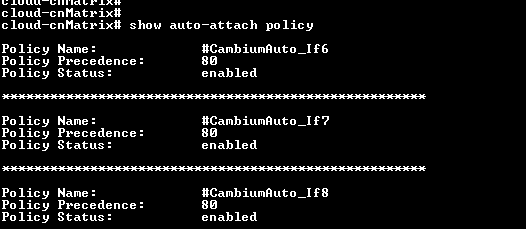
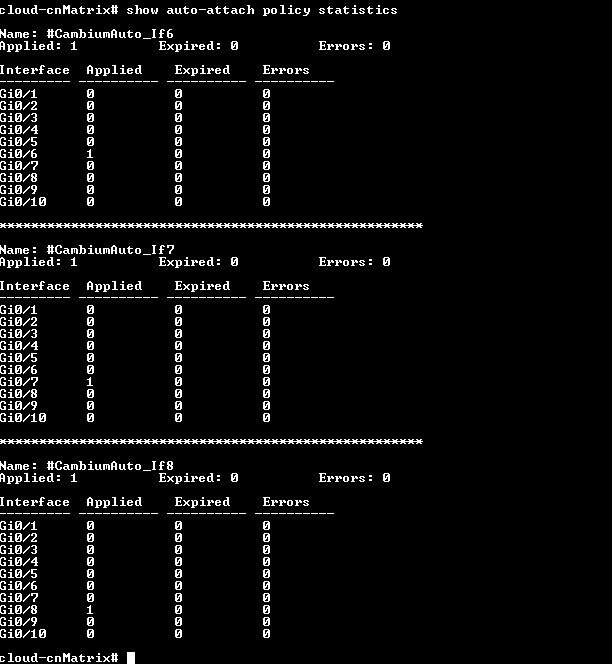
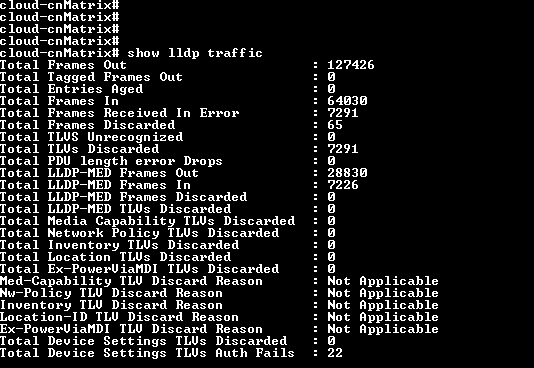
Step 9 – Review policy detail and statistics
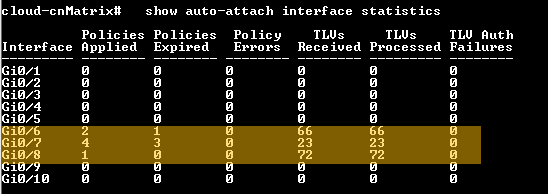
Check the detailed policy output and statistics to confirm the correct port mode, VLAN list and TLV processing state.
show auto-attach policy detail
show auto-attach interface statistics
show auto-attach policy statistics
show lldp traffic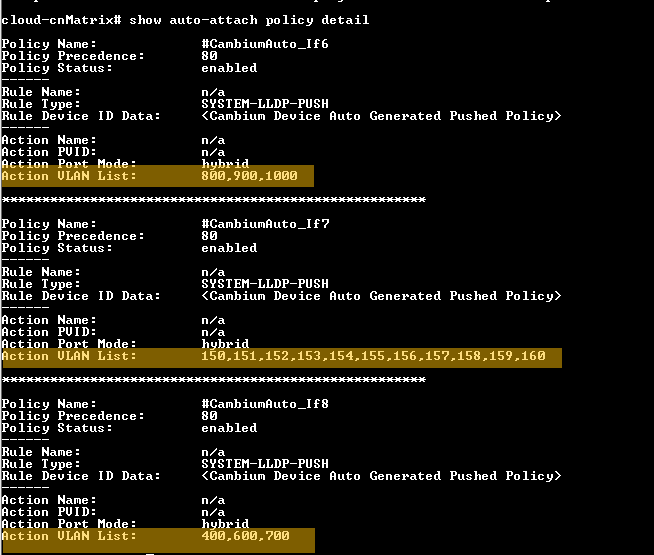
Step 10 – Optional authentication key change
If changing the PBA authentication key, use the same key on both the switch and AP. If the keys do not match, LLDP authentication fails and the policy will not apply.


Troubleshooting quick checks
- AP not visible: check cabling, PoE, LLDP and supported firmware.
- No VLAN list: check the AP Ethernet interface is in trunk mode and has allowed VLANs configured.
- TLV authentication failures: check the shared authentication key on both devices.
- Policy not attached: check Auto-Attach global and port-level status.
- SSID clients cannot reach services: validate VLANs, DHCP, routing and firewall rules end to end.
How Elmdale IT can help
Elmdale IT Services can support Cambium switching, WiFi design, VLAN segmentation, Policy Based Automation validation, post-install wireless surveys and ongoing managed IT support.