

A visitor asking for the WiFi password seems like a small request. But if their device joins the same network as your staff laptops, printers, servers, cameras or teaching systems, it can create an unnecessary route into systems that should remain private. Knowing how to deploy guest WiFi properly means balancing a good visitor experience with sensible network separation and clear security controls.
For a business, school or multi-site organisation, guest access should be treated as a planned service, not an extra setting switched on at the router. The right approach depends on the size of the site, the number of visitors, the sensitivity of your systems and the capacity of the existing wireless network.
Start with the purpose of guest WiFi
Before choosing equipment or creating a network name, decide who the service is for and what they need it to do. A small office may only need internet access for occasional clients and contractors. A school may need access for parents, governors, visiting professionals and events. A larger organisation may have regular guests, meeting rooms and temporary staff using the network every day.
In most cases, guest WiFi should provide reliable internet browsing, video calls and access to cloud services. It should not provide access to internal file shares, printers, staff devices, management systems or network administration pages. Defining that boundary early makes the technical decisions much clearer.
It is also worth considering how guests will receive access. A shared password is simple, but it is easily passed on and rarely changed. A branded sign-in page, time-limited access code or sponsor-approved login can offer more control where visitor numbers or security expectations are higher. There is no single right answer – the proportionate option is usually the best one.
How to deploy guest WiFi on a separate network
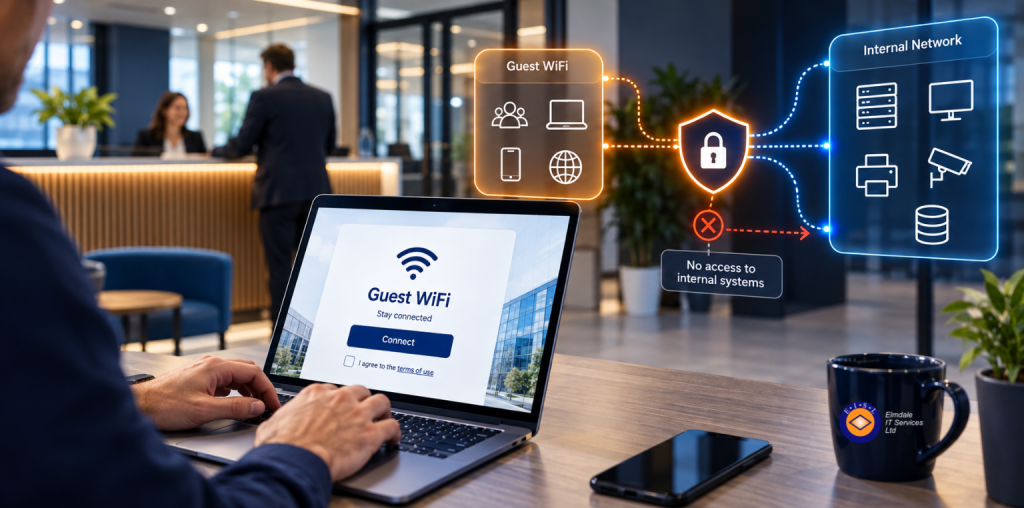
The central principle is separation. Guest devices must sit on a different network segment from business and school systems, usually through a dedicated virtual LAN, often called a VLAN. This creates a boundary between the guest wireless service and the network used by staff, servers, devices and services.
That VLAN should have its own IP address range and its own rules on the firewall. The firewall should allow guests to reach the internet, while blocking access to internal networks by default. This is safer than attempting to decide which individual internal devices guests are allowed to see. In practical terms, a visitor should be able to use email and join a Teams meeting, but not discover a shared folder or connect to a reception printer.
Wireless client isolation should also be enabled where appropriate. This stops guest devices from communicating directly with one another. It reduces the risk of one compromised or poorly secured personal device scanning, attacking or sharing files with another guest device on the same WiFi.
A properly segmented guest network also helps protect everyday operations. If a visitor downloads something unsafe or arrives with an infected device, the impact is contained. Segmentation is not a replacement for endpoint protection, patching and good cyber security practices, but it is an effective layer of defence.
Check wireless coverage and capacity first
Guest WiFi is only useful if it works in the places visitors actually use. Meeting rooms, reception areas, halls, waiting rooms and event spaces may be far from existing wireless access points. A signal that appears acceptable on a phone can struggle when several people begin using video conferencing at once.
A wireless survey helps establish where coverage is weak, where access points are needed and whether walls, shelving, building materials or neighbouring networks could affect performance. This is particularly relevant in older buildings, schools and sites that have grown over time without a consistent network plan.
Capacity matters as much as coverage. A site hosting an open day, training session or client event can see dozens of devices connect at once. The wireless equipment, internet connection and network switches must be able to handle expected demand without reducing performance for staff.
It can be sensible to apply bandwidth limits to guest traffic. This prevents a handful of devices using large downloads, streaming or software updates from consuming the connection needed for business activity. Limits should be realistic, however. Set them too low and visitors may struggle with ordinary video calls or cloud applications.
Choose access controls that suit the organisation
The sign-in method should reflect both convenience and risk. For a small office with occasional visitors, a separate guest network with a strong password that is changed regularly may be sufficient. Avoid using the same password as the staff network, and do not display passwords where they can be used indefinitely by anyone passing through.
For busier offices, schools and organisations with stricter governance requirements, a captive portal can be more appropriate. Guests connect to the guest network and are presented with a landing page before accessing the internet. This can display acceptable-use terms, request basic details or issue access for a defined period.
More advanced systems can generate individual vouchers, require a member of staff to approve access or integrate with visitor management procedures. These options add administration, so they should be chosen because they solve a genuine operational need rather than because they sound more sophisticated.
Whatever method you use, publish a short acceptable-use policy. It should explain that access is for lawful use, that inappropriate activity is prohibited and that the service may be monitored or restricted to protect the organisation. Keep the wording clear and proportionate.
Apply security settings that do not create unnecessary friction
Guest WiFi should use current wireless encryption, ideally WPA3 where supported. WPA2 remains common on older devices and can be used where necessary, but outdated wireless security options should be avoided. The guest password, if used, needs to be long, unique and changed when staff with knowledge of it leave or when it has been shared too widely.
Turn off features that expose network management interfaces to guests. Network switches, wireless controllers, routers and firewalls should only be manageable from authorised administrative networks. Default administrator passwords must be changed, and multi-factor authentication should be enabled for cloud-managed wireless platforms.
Content filtering can be worthwhile, particularly for schools or organisations providing access in public-facing spaces. The appropriate level depends on safeguarding responsibilities, organisational policy and local legal advice. Filtering should support a safe environment without blocking legitimate work unnecessarily.
Keep firmware on wireless access points, switches and firewalls up to date. Wireless equipment is often installed and then forgotten until something fails. Regular updates address known security weaknesses and can resolve stability issues that affect users long before they become a serious incident.
Plan for support, visibility and change
A guest network still needs ownership. Someone should know where the configuration is documented, how access is provided, who can change settings and what to do if users report problems. This is especially useful when reception staff are the first people asked for help but do not have access to network administration tools.
Monitoring provides useful visibility without turning guest access into an administrative burden. It can show whether an access point is overloaded, whether bandwidth limits are being reached, or whether a fault is affecting a particular part of the building. For organisations with several sites, centrally managed wireless systems make configuration and troubleshooting more consistent.
Review the setup after major changes. A new office layout, additional classroom devices, a faster broadband connection or a move to cloud telephony can alter network demand. Guest WiFi should be included in wider IT planning, rather than treated as a separate convenience service.
Avoid the common shortcuts
The most common mistake is giving visitors the staff WiFi password. It may feel helpful in the moment, but it removes the separation that protects internal systems. Another frequent problem is using an inexpensive standalone wireless device connected directly to the main network, with no firewall rules or monitoring in place.
Organisations also underestimate how long passwords remain in circulation. If a guest password has been printed, emailed repeatedly or used at public events, assume it will continue to be shared. A process for rotating access details is simple and worthwhile.
Finally, do not confuse guest WiFi with a security strategy in its own right. It is one part of a well-managed environment that should also include secure user accounts, backups, patch management, phishing awareness, endpoint protection and a tested response plan.
A well-designed guest network is quiet when it is working properly: visitors connect without delay, staff do not need to improvise, and internal systems remain out of reach. If you are unsure whether your current wireless setup provides that separation, a professional review can turn a convenient service into a controlled, dependable part of your IT estate.