

A video call freezes halfway through a client meeting. A member of staff moves two desks and loses access to the cloud system they need. In a school, an online lesson slows to a halt when a class connects at once. Knowing how to reduce office Wi-Fi deadspots is not just about improving convenience – it is about protecting productivity, communication and confidence in the systems your organisation relies on.
A weak Wi-Fi signal is often treated as a minor irritation until it begins disrupting everyday work. The right fix is rarely simply buying a more powerful router. Deadspots are usually caused by a combination of building layout, network design, device demand and outdated equipment. A planned approach identifies the real cause before money is spent on the wrong solution.
Start by finding where and when Wi-Fi fails
A deadspot is an area where wireless coverage is unavailable, unstable or too slow for the work being carried out. It may be obvious in a meeting room at the far end of the office, but problems can also appear only at busy times or when particular applications are in use.
Ask staff to record where they lose connection, which devices are affected and what they were trying to do. Look for patterns: does the issue occur in one corner of the building, behind a warehouse wall, on an upper floor or only when the office is full? A floor plan marked with reported issues is a useful starting point, but it should not be the final diagnosis.
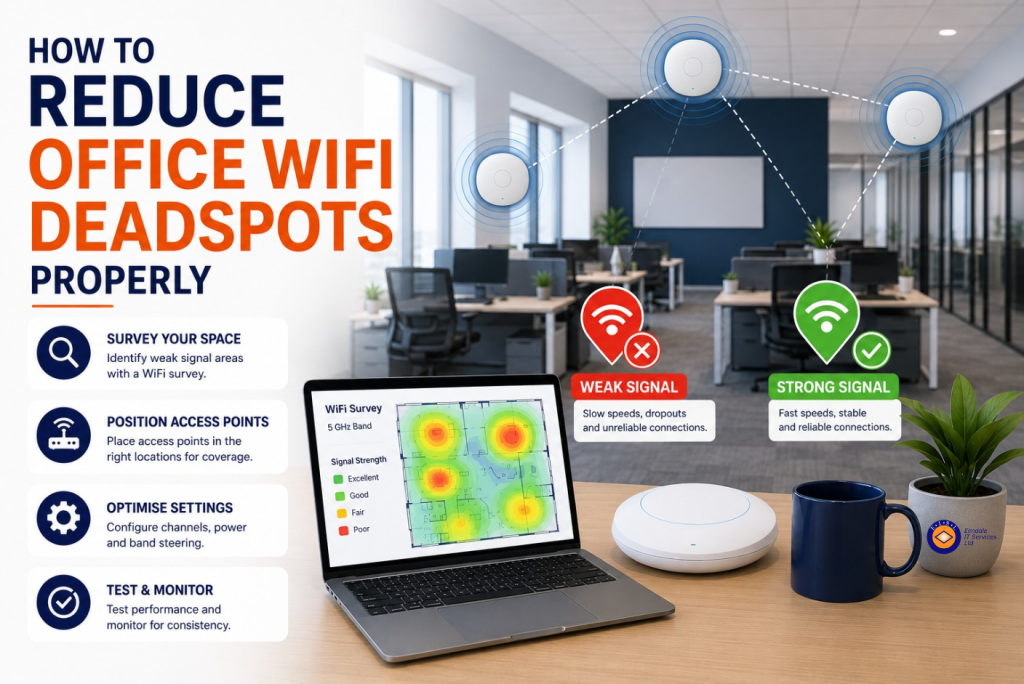
A professional wireless survey measures signal strength, interference, channel use and roaming performance across the site. It shows not only where coverage is weak, but whether a device is connecting to the wrong access point or competing with too many nearby networks. This matters in older offices, converted properties and schools, where thick walls, metal structures and unusual layouts can affect signals considerably.
How to reduce office Wi-Fi deadspots with better placement
The position of your wireless access points has a greater effect on coverage than many organisations expect. Wi-Fi signals do not pass cleanly through every wall and floor. Brick, concrete, metal, filing cabinets, lift shafts, kitchen equipment and even large quantities of water can reduce or distort the signal.
An access point hidden in a comms cupboard, placed low behind furniture or installed at one end of a long building will struggle to provide consistent coverage. In most workplaces, ceiling-mounted access points positioned centrally in the areas they serve produce better results. The ideal arrangement depends on the building and its use, rather than a fixed rule about how many access points are needed per square metre.
More access points are not automatically better. If they are too close together, poorly configured or using overlapping channels, they can interfere with one another. The aim is controlled, overlapping coverage that allows staff to move between areas without calls dropping or devices clinging to a distant access point.
Cabling is also part of the answer. Wired access points provide a more dependable foundation than relying on consumer-grade wireless extenders. An extender can be useful in a small, temporary or low-demand area, but it usually repeats an already weakened signal and may reduce available capacity. For a permanent office, properly cabled access points are generally the more reliable investment.
Check whether capacity is the real problem
Sometimes the signal is strong, yet Wi-Fi still performs badly. This is often a capacity issue rather than a coverage issue.
A network designed years ago for a handful of laptops may now be supporting laptops, mobiles, tablets, VoIP handsets, printers, meeting-room equipment, security cameras and guest devices. Each connection adds demand. Video conferencing, cloud backups and large file transfers can quickly expose limitations in ageing hardware or an undersized internet connection.
Modern business-grade access points can manage many devices, but their specification needs to match the environment. A small office with twenty staff has different requirements from a school with several classrooms connecting simultaneously, or a warehouse where handheld devices must work across a large area.
It is also worth checking the wired network behind the Wi-Fi. An access point may be capable of high speeds, but it cannot deliver them if it is connected through an old switch, limited network port or inadequate cabling. Power over Ethernet can simplify installation and keep access points running through a suitable uninterruptible power supply, but the switch must provide sufficient power for the equipment connected to it.
Reduce interference and configure the network properly
Office Wi-Fi shares radio frequencies with neighbouring businesses and, in some cases, equipment such as Bluetooth devices, wireless cameras and microwave ovens. In densely occupied buildings, the 2.4 GHz band can be particularly congested. It travels further but has fewer usable channels and is more susceptible to interference.
The 5 GHz band usually offers better performance for modern devices, while newer equipment may also use 6 GHz where appropriate. Neither band is universally best. A sensible design balances reach, speed and the devices your staff use, rather than forcing every device onto one setting.
Channel planning is equally important. Leaving every access point to select channels automatically can work in a small, quiet location, but it may not be enough in a busy multi-floor building. Business wireless systems can coordinate channels and transmission power across the estate, reducing contention and helping devices connect to the most suitable access point.
Network names and access rules should be configured with the same care. Staff, guests and smart devices should not all share one unrestricted network. Separating them helps protect business systems, controls unnecessary traffic and makes faults easier to investigate. Guest access can be limited so that visitors receive internet access without reaching internal files, printers or administrative systems.
Do not overlook security while improving coverage
Trying to fix a deadspot by adding an inexpensive, unmanaged device can create a security weakness. Unauthorised access points, weak passwords and old encryption standards give attackers an easier route into the network.
Use business-grade equipment with current security settings, strong administrator credentials and regular firmware updates. Where suitable, staff Wi-Fi should use individual sign-in credentials rather than a single shared password. This provides better control when someone joins or leaves and creates a clearer audit trail.
Wireless coverage also needs to work alongside your wider cyber security arrangements. Network segmentation, firewall policies, endpoint protection and backup planning all have a role. A well-performing Wi-Fi network is valuable, but it must not become a less protected path to sensitive information.
Plan for meeting rooms, remote corners and future change
The places that need the best Wi-Fi are not always the desks closest to the router. Meeting rooms need reliable performance for video calls and screen sharing. Reception areas may need a controlled guest network. Stock rooms, outdoor workspaces and temporary teaching areas can require coverage that was not considered in the original installation.
Before approving changes, think about how the organisation will use the building over the next few years. A planned office expansion, new classroom technology, migration to cloud applications or move to VoIP telephony can all increase wireless demand. Designing for that change now is usually less disruptive than repeatedly adding equipment later.
Monitoring is valuable after installation too. It allows IT support teams to spot recurring faults, failing hardware, rising device numbers and unusual network activity before staff have to report another outage. Coverage is not a one-off project: layouts change, equipment ages and work patterns evolve.
For organisations without an in-house network specialist, Elmdale IT Services can assess wireless performance, explain the findings in plain English and recommend a solution that suits the building, users and budget. The objective is not to fill a site with unnecessary hardware, but to give staff dependable access wherever their work takes them.
A Wi-Fi deadspot is often a useful warning that the wider network deserves attention. Address it with a survey, a considered design and ongoing care, and your wireless network can become a dependable part of the working day rather than a recurring source of frustration.