

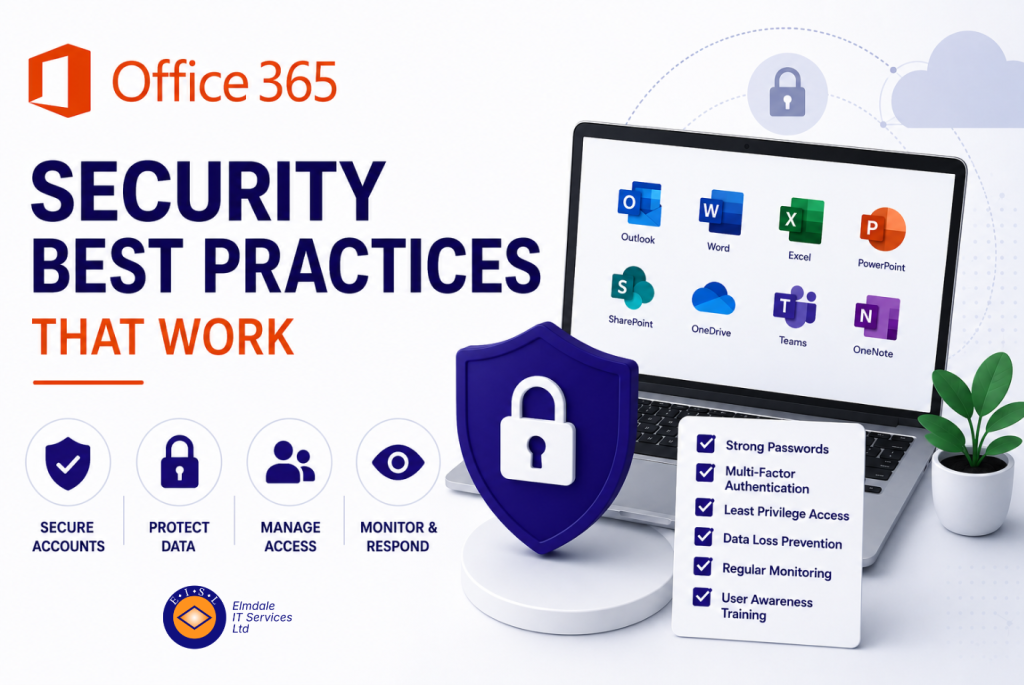
A compromised Microsoft 365 account rarely announces itself with a dramatic warning. It may begin with a convincing invoice email sent from a trusted colleague’s address, an unusual sign-in late at night, or a mailbox rule quietly forwarding messages outside the organisation. Effective Office 365 security best practices are therefore not simply about ticking settings in an admin portal. They are about reducing the opportunities for an attacker to gain a foothold, limiting the damage if they do, and making sure your people know what to do next.
For businesses, schools and established organisations, Microsoft 365 often holds the information that keeps daily operations moving: email, documents, financial records, pupil or customer data, meeting notes and internal conversations. It deserves the same planned protection as the network, premises and financial systems.
Start with identity, not just passwords
Most Microsoft 365 attacks begin with a stolen, guessed or reused password. A long password still has value, but it is no longer enough on its own. Multi-factor authentication, or MFA, should be the baseline for every user account, especially administrators, finance staff and anyone with access to sensitive data.
MFA asks for an additional confirmation when someone signs in, such as an approval through an authenticator app. This means that a stolen password alone is far less useful to an attacker. Authenticator apps and security keys generally offer stronger protection than text-message codes, although the best option depends on the devices and working patterns within your organisation.
The practical challenge is adoption. Staff can see security prompts as an interruption, particularly when they are working against a deadline. Clear communication matters here. Explain why the change is being made, provide simple instructions, and ensure there is responsive support for anyone who changes handset or loses access to their authentication method.
Protect administrator accounts separately
Administrative accounts can create users, change security settings and access a great deal of information. They should not be used for everyday email and document work. Give administrators a separate, tightly controlled account for privileged tasks, with MFA enforced and only the permissions genuinely required.
Avoid sharing one administrator login between several people. Shared accounts remove accountability and make it harder to investigate changes. They also create an obvious problem when a member of staff leaves or changes role.
Apply Office 365 security best practices through access controls
Not every sign-in carries the same level of risk. A member of staff accessing email from a managed work laptop in Berkshire during normal hours is different from an unfamiliar sign-in attempt from another country using a device you do not recognise.
Conditional Access policies allow organisations to make sensible distinctions. Depending on your Microsoft licensing and requirements, you can require MFA in higher-risk situations, block sign-ins from locations where you have no business presence, and restrict access from devices that do not meet your security standards.
These policies need careful planning. Blocking every overseas sign-in may be sensible for a local school or a business with no international travel, but it can hinder a sales team travelling regularly or employees working abroad. Begin with an understanding of how people genuinely work, test policies with a small group, and keep an emergency access process available in case a policy causes an unexpected lockout.
Keep email protection switched on and properly tuned
Email remains one of the easiest ways into an organisation. Criminals use phishing messages to steal credentials, deliver malicious files and impersonate senior staff or suppliers. Microsoft 365 includes protections against spam, malware and impersonation, but default settings should be reviewed rather than assumed to fit every organisation.
Pay particular attention to messages pretending to come from directors, finance teams, key suppliers and trusted external partners. A request to change bank details or make an urgent payment deserves a verification process outside email, such as calling a known telephone number. This is a business control as much as an IT control.
Email filtering will occasionally hold a legitimate message. That trade-off is normal. The aim is not to prevent every false positive at the expense of security, but to have a clear route for reviewing held messages quickly. Users should also know how to report suspicious emails instead of simply deleting them. Reports help the IT team identify patterns and protect others who may have received the same message.
Control sharing and protect sensitive information
Microsoft 365 makes collaboration easier, but convenient sharing can create risks when it is left unmanaged. Files may be shared with personal email addresses, old suppliers or recipients who should no longer have access. Review the settings for OneDrive, SharePoint and Teams so that they reflect how your organisation needs to collaborate.
For some organisations, external sharing should be restricted to named, approved domains. Others need to exchange documents with a broader range of customers, parents, contractors or partner organisations. In those cases, expiry dates, view-only permissions and regular access reviews are useful safeguards.
Sensitive information also needs more than a general instruction to ‘be careful’. Define what is confidential in practical terms: payroll information, safeguarding records, commercial proposals, legal documents, personal data or financial details. Data classification and labelling tools can help users apply the right protection, but a simple policy written in plain English is the starting point.
Make device security part of the plan
A secure cloud account can still be exposed through an unmanaged or infected device. Laptops, desktops and mobile phones used to access Microsoft 365 should receive operating system updates, security updates and appropriate endpoint protection. Lost mobile devices should be capable of being locked or wiped where business data is stored on them.
For organisations supporting hybrid working, device management provides useful control without necessarily becoming intrusive. It can check that a screen lock is enabled, encryption is active and essential updates are installed before allowing access to company information. The right level of control depends on whether devices are organisation-owned, personally owned, or a mixture of both.
Be explicit about the boundaries. If staff use their own phones, they need to understand what the organisation can and cannot manage. Clear policy avoids uncertainty and makes adoption easier.
Back up the data you cannot afford to lose
Microsoft provides resilience within its service, but that does not remove the need to consider independent backup. Accidental deletion, a malicious insider, a compromised account or a retention policy that is too short can all result in data being unavailable when it is needed.
A suitable Microsoft 365 backup should cover the services your organisation relies on, such as Exchange Online mailboxes, OneDrive, SharePoint and Teams. More importantly, restores should be tested. A backup that has never been restored is an assumption, not a recovery plan.
Decide in advance who can request a restore, how quickly different types of data need to be recovered and how long records must be retained. Schools may have particular requirements around safeguarding or pupil information, while businesses may need to retain correspondence for contractual, financial or regulatory reasons.
Train people for the decisions they actually make
Security awareness works best when it is regular, relevant and respectful of people’s time. A once-a-year presentation is unlikely to prepare someone for a convincing email received on a busy Tuesday morning.
Use short, practical sessions that cover the situations staff see: fake document-sharing notices, password-reset requests, invoice fraud, QR-code scams and unexpected MFA prompts. Teach people to pause before approving an authentication request they did not initiate. Attackers sometimes rely on repeated prompts to persuade a tired user to accept one.
Training should never be about blaming someone who clicks a suspicious link. Fast reporting is more valuable than silence. Create a culture where staff know that raising a concern promptly is the right response, even if it turns out to be harmless.
Review, monitor and prepare for an incident
Security settings drift as organisations grow, staff change roles and new tools are introduced. Schedule regular reviews of administrator access, inactive accounts, external sharing, forwarding rules, authentication methods and security alerts. Remove access quickly when a staff member leaves, and review permissions when responsibilities change.
It is also worth agreeing an incident process before you need it. If an account is suspected to be compromised, staff should know who to contact and what information to provide. The response may include resetting credentials, revoking active sessions, checking mailbox rules, reviewing sign-in activity and notifying affected parties where necessary.
For organisations without an in-house IT security team, a managed IT partner can provide ongoing oversight and practical help without adding unnecessary complexity. Elmdale IT Services works with organisations across the South of England to shape Microsoft 365 protection around their people, data and day-to-day operations.
The most useful next step is not to switch on every possible setting at once. Start by checking who has access, whether MFA is consistently enforced, how email threats are handled and whether you could recover critical information tomorrow. From there, a measured security plan can make Microsoft 365 safer without making work harder than it needs to be.