

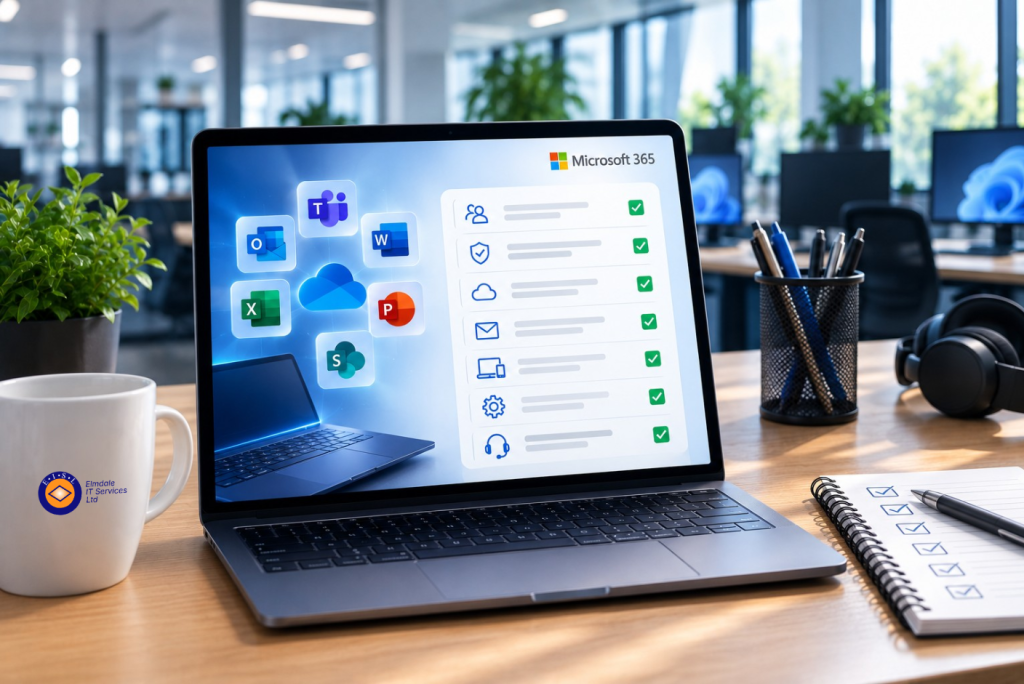
A Microsoft 365 tenancy can appear to be working well right up until a phishing email, lost laptop or inaccessible shared file exposes a gap. An office 365 support review checklist gives business leaders and school administrators a practical way to test whether their setup is secure, supportable and suited to how people actually work.
This is not simply a technical exercise. The right review should identify avoidable cost, reduce downtime and clarify who is responsible when something goes wrong. It should also distinguish between settings that look satisfactory on paper and arrangements that staff can use confidently under pressure.
Start with the support service, not just the software
Microsoft 365 is a platform, not a complete support arrangement. Licences provide access to applications and services, but they do not automatically ensure that users receive help promptly, permissions are managed correctly or security alerts are acted upon.
Review how staff currently request support. Is there a clear route for urgent issues, such as a suspected account compromise or a senior member of staff being unable to access email? Are requests logged, prioritised and followed through? For organisations across Berkshire, Hampshire, Surrey, Dorset, Wiltshire and London, local on-site assistance may matter just as much as remote help when a problem affects an office, classroom or meeting room.
Ask for evidence rather than assurances. A useful support review considers recent ticket volumes, recurring faults, response times and how clearly updates are communicated. A low number of logged tickets is not always a good sign if employees have started finding workarounds or taking problems to the person nearest the printer.
You should also establish ownership. Someone needs to be accountable for Microsoft 365 administration, licence changes, security configuration and supplier escalation. That may be an internal member of staff, an external IT partner or a shared arrangement, but it should never be unclear.
Office 365 support review checklist: security and access
Most Microsoft 365 security incidents start with an identity. A compromised password can provide access to email, files, contacts and internal conversations, often without an obvious warning. Review access controls before looking at more advanced tools.
Your checklist should confirm that:
- Multi-factor authentication is enabled for all users, particularly administrators, with a planned and supported method for staff who change phones or lose authentication devices.
- Privileged accounts are limited, documented and reviewed. Day-to-day work should not be carried out using a global administrator account.
- Former employees, temporary staff and leavers are removed or disabled promptly, with a defined process for mailbox access and file ownership.
- Password, sign-in and conditional access policies are appropriate for the organisation’s licences and risk profile. A school, for example, may need different controls for staff, pupils, governors and third parties.
- Email protection is configured and monitored, including anti-phishing, spam filtering, attachment handling and a clear method for users to report suspicious messages.
There is a balance to strike. Security that is too restrictive can prevent legitimate work, especially for mobile teams, visiting staff or suppliers. Security that is too relaxed places the organisation at risk. The aim is proportionate control, reviewed whenever working patterns or business requirements change.
Check licences against real usage
Licensing is one of the easiest areas to overlook because charges are regular and changes are often made in a hurry. A review should compare each assigned licence with what the person actually needs. This includes staff who have left, shared or generic accounts, seasonal workers and users with more expensive plans than their role requires.
Cost reduction is useful, but it should not be the only objective. Removing a licence without checking mailbox retention, OneDrive ownership, phone requirements or security features can create a new problem. Equally, a lower-cost plan may not include the protection or device management needed by a senior employee handling sensitive information.
Document the reason for each licence type and nominate someone to approve changes. This creates an audit trail and makes future budgeting much easier. If an organisation is planning growth, a merger, a new site or more remote working, licence requirements should form part of that discussion rather than being treated as an afterthought.
Review email, files and collaboration rules
Teams, SharePoint and OneDrive make collaboration easier, but they can also create a confusing estate of old sites, unmanaged channels and files shared more widely than intended. A review should look at both the technology and the habits that have grown around it.
Check who can create Teams and Microsoft 365 groups, whether naming standards exist and how inactive workspaces are dealt with. Confirm that external sharing is enabled only where it has a clear business purpose, and that employees understand the difference between sharing a link with named people and allowing access to anyone who receives it.
Pay particular attention to sensitive information. Financial data, pupil records, HR documents and client information may need tighter access, retention rules or encryption. The right approach depends on your sector, contractual obligations and how the information is used. A blanket ban on sharing can drive staff back to personal email or unapproved file-sharing tools, which is usually less safe.
It is also worth reviewing mailbox rules and shared mailboxes. Fraudsters sometimes create hidden forwarding rules after gaining access to an account. Shared mailboxes should have named owners, appropriate permissions and a process for removing access when responsibilities change.
Test backup, retention and recovery
A common assumption is that Microsoft automatically backs up everything in the way an organisation needs. Microsoft 365 includes retention and recovery features, but these are not necessarily a substitute for an independent backup strategy. The distinction matters when files are deleted, data is accidentally overwritten, a malicious user acts within a legitimate account or long-term retention is required.
Review what is backed up across Exchange Online, OneDrive, SharePoint and Teams, how long copies are retained and where they are stored. Then test recovery. It is not enough to know that a backup product reports success. Your provider or internal team should be able to restore a mailbox, a folder, a SharePoint library or a specific file within an agreed timescale.
Consider realistic scenarios: a finance folder is overwritten before month end, an employee deletes OneDrive files and empties the recycle bin, or ransomware encrypts documents held on a synchronised device. The recovery process, decision-maker and expected downtime should be understood before any of these events occur.
Include devices and remote working
Microsoft 365 cannot be reviewed in isolation from the laptops, mobiles and home networks used to access it. A well-protected account can still be exposed if a device has no encryption, is missing security updates or is shared with family members.
Check whether work devices are enrolled in a management system, whether lost devices can be locked or wiped, and whether encryption and antivirus protection are in place. Bring-your-own-device arrangements need particular care. They can be practical and cost-effective, but should be governed by a clear policy that protects company data without overreaching into personal information.
Remote workers also need reliable guidance on secure Wi-Fi, video meetings, printing and the use of personal storage. Plain-English instructions are more likely to be followed than a lengthy policy that no one can find when they need it.
Turn findings into an owned action plan
A support review is valuable only if it produces a manageable plan. Separate urgent security issues from worthwhile improvements and longer-term projects. Each action should have an owner, target date, expected cost and a clear explanation of the risk or benefit.
Some improvements are quick: enabling multi-factor authentication, removing old accounts or correcting sharing permissions. Others need planning, such as introducing device management, changing licence tiers, migrating shared files or improving resilience for a second office. Trying to do everything at once can disrupt staff and reduce confidence in the changes.
Elmdale IT Services approaches Microsoft 365 support as part of the wider operating environment, including users, devices, connectivity, cyber security and business continuity. That joined-up view is particularly helpful when an organisation has outgrown an informal setup but does not need a large in-house IT department.
Set a date for the next review while the findings are still fresh. A six or twelve-month cycle, with an additional check after a major change or security incident, keeps Microsoft 365 aligned with the organisation rather than leaving critical decisions to chance.