


Managing a switching network can quickly become time-consuming, especially when devices are connected to random ports with little visibility of their patch level, operating system, ownership or security posture. A more controlled approach is to use 802.1X, MAC authentication, RADIUS and dynamic VLAN assignment so the network can decide what level of access a device should receive automatically.
This guide explains how to build a secure wired access model for Ruckus ICX switches using Windows Active Directory, Active Directory Certificate Services, Network Policy Server and Group Policy. The aim is to reduce manual switch-port configuration, prevent rogue devices from gaining trusted access and make the wired network easier to manage at scale.
Important: Treat the passwords, shared secrets, IP addresses, VLAN names and commands in this article as examples. Replace them with values suitable for your environment and test thoroughly before deploying to a live network.
What this setup achieves
- Domain-joined Windows devices can authenticate using machine certificates and 802.1X.
- Non-domain devices, such as printers, phones, building management systems or access-control hardware, can be authenticated using MAC authentication where appropriate.
- Devices can be placed into the correct VLAN dynamically based on Active Directory group membership and RADIUS attributes.
- Unknown or failed devices can be placed into a default or restricted VLAN rather than receiving normal network access.
- Administrators can manage access centrally through Active Directory and NPS instead of manually configuring individual switch ports.
Prerequisites
Before starting, make sure you have the following in place:
- A Ruckus ICX switch environment. The original build was tested on ICX firmware version 08.0.80.
- A working Windows Active Directory domain.
- An understanding of Active Directory security groups and Group Policy Objects.
- Active Directory Certificate Services, either existing or newly deployed.
- Two Windows servers for Network Policy Server where resilience is required.
- A list of MAC addresses for non-domain joined devices that need wired access.
- A planned VLAN design covering trusted devices, MAC-authenticated devices, restricted access and default authentication behaviour.
Modern deployment note: the source document references older Windows Server versions. For any new implementation, use supported Windows Server versions and current security baselines.
1. Configure Active Directory Certificate Services
Active Directory Certificate Services is required because the RADIUS servers need certificates, and domain-joined devices can use certificates for machine-based authentication. This is more secure than relying on MAC authentication for Windows endpoints.
Install the AD CS role
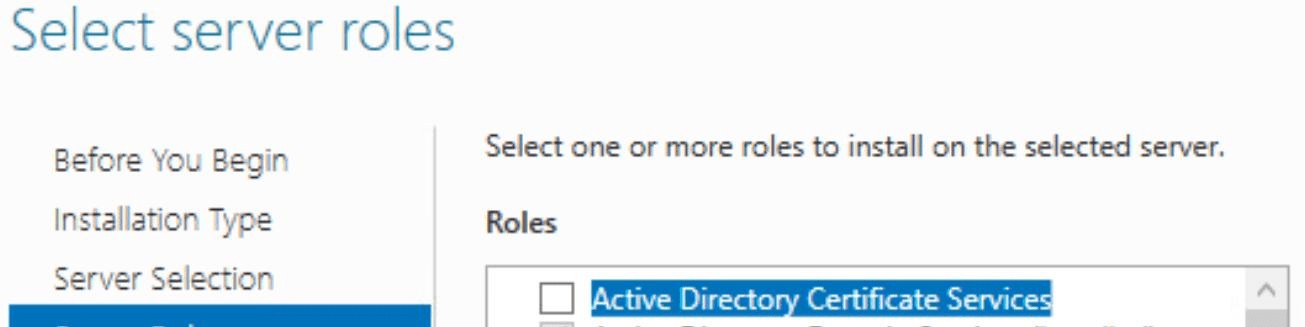
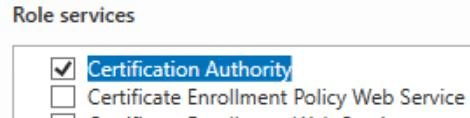
On the certificate server, add the Active Directory Certificate Services role and ensure that the Certification Authority role service is selected.
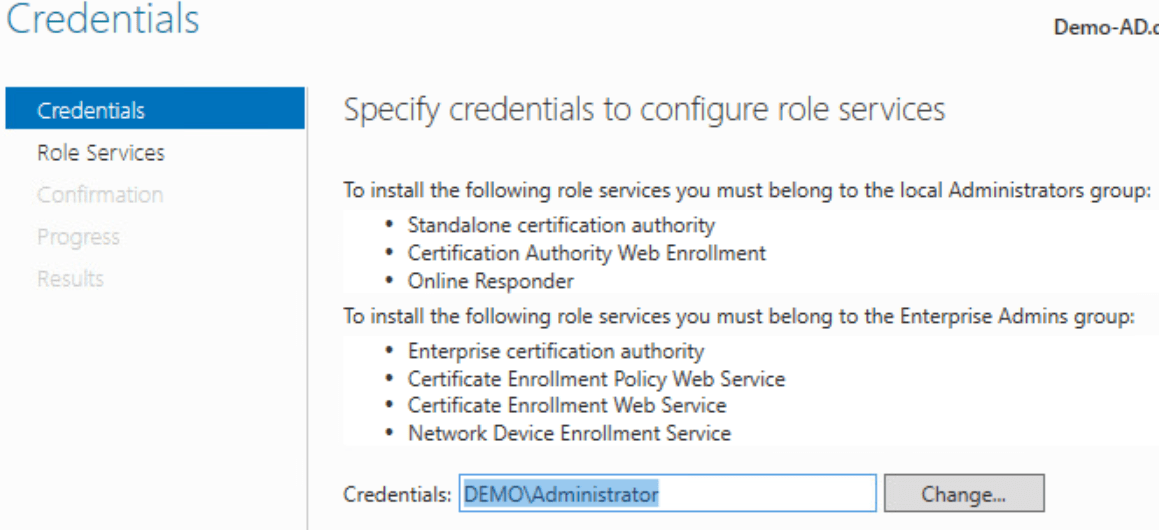
When configuring the role, use an account with the correct permissions, normally a domain administrator or an account with delegated rights for this configuration.
Configure the Certification Authority
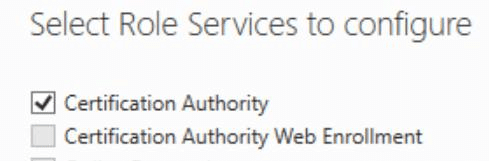
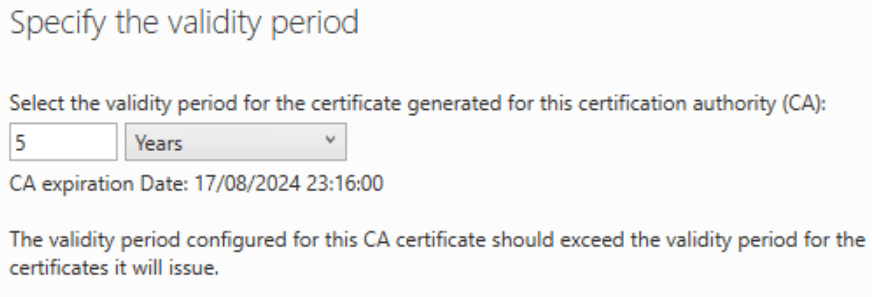
Continue through the wizard and confirm that Certification Authority is selected. The CA validity period can be adjusted to suit the organisation, but certificate lifecycle management should be planned carefully.
2. Prepare Active Directory security groups
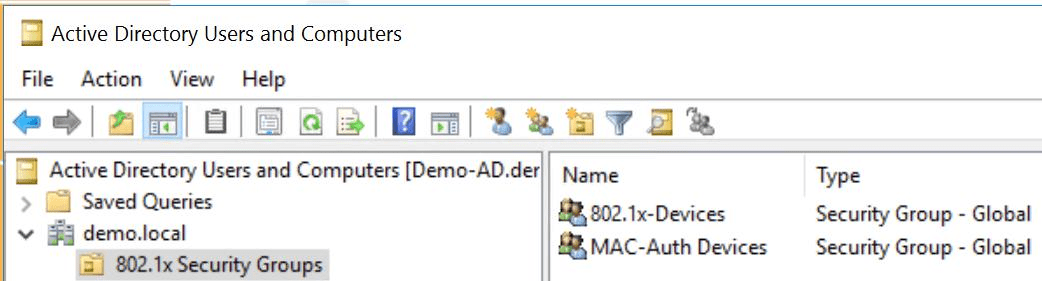
The design relies on Active Directory security groups. The example uses two groups: 802.1x-Devices and MAC-Auth Devices. In a real deployment, it is usually better to create more granular groups, such as printers, phones, tills, CCTV, access control, BMS and staff devices, so that each category can be segmented and reported on properly.
Create accounts for MAC-authenticated devices
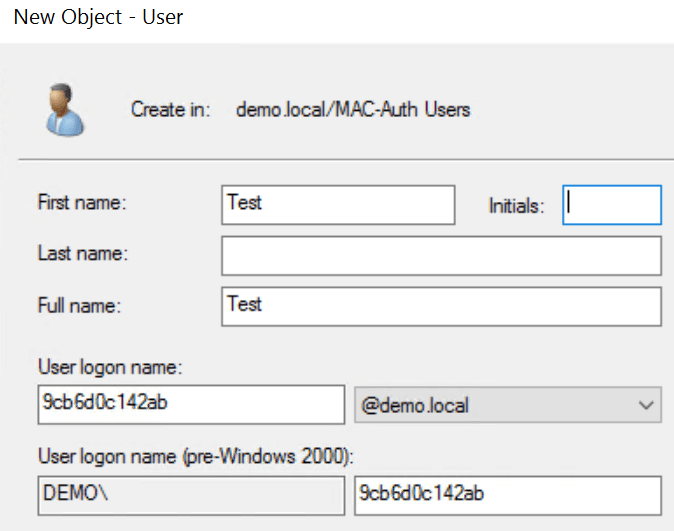
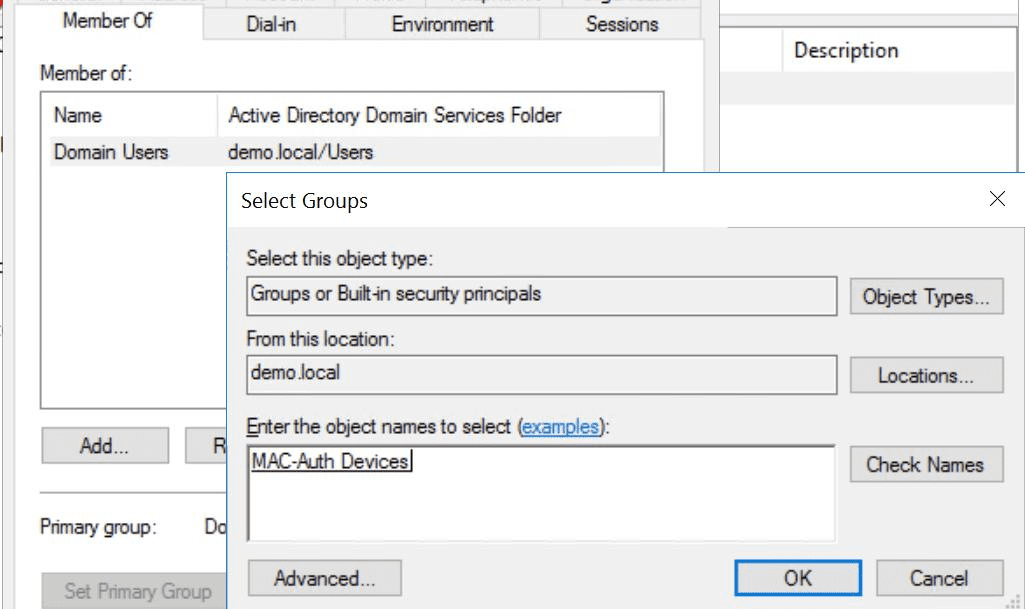
For non-domain devices that cannot complete 802.1X authentication, create a user account in Active Directory. The username should be the device MAC address in lowercase, without separators, unless your RADIUS and switch configuration uses a different format.
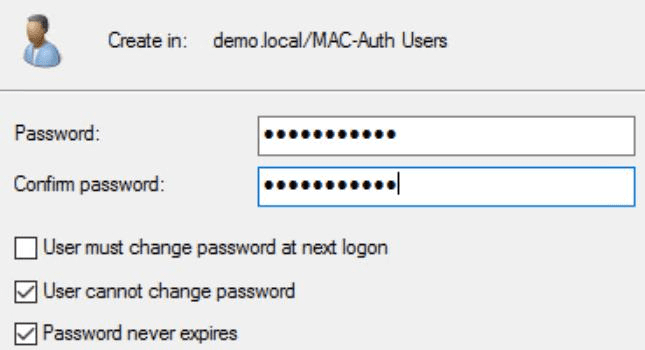
The original guide used a fixed password for all MAC authentication accounts so that the switch can use a password override. In production, use a strong controlled value, store it securely and make sure the password used in Active Directory matches the switch configuration.
Finally, add the account to the correct MAC authentication security group. This group membership will later be used by NPS to decide the VLAN assignment.
3. Configure Windows Network Policy Server
Network Policy Server is the RADIUS service that makes the access decision. It receives authentication requests from the switches, checks Active Directory group membership and returns the RADIUS attributes that tell the switch which VLAN to use.
Install the NPS role
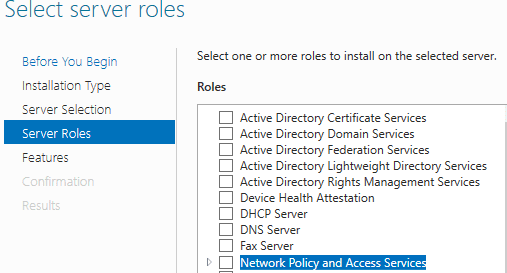
On each RADIUS server, install the Network Policy and Access Services role. Where network access is business-critical, deploy at least two NPS servers and configure the switches with both RADIUS targets.
Request a computer certificate for NPS
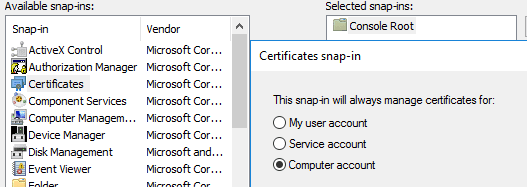
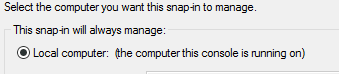
For certificate-based machine authentication, the NPS server needs a valid certificate. Open MMC, add the Certificates snap-in for the local computer account, then request a new Computer certificate using the Active Directory enrolment policy.
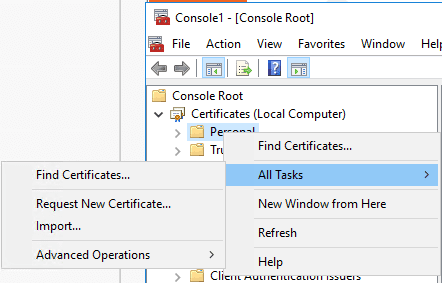

Certificate reminder: monitor certificate expiry and renew certificates before they expire. An expired NPS certificate can stop domain-joined devices authenticating to the wired network.
Create the RADIUS client
In Network Policy Server, add each Ruckus ICX switch as a RADIUS client. Add the switch management IP address and configure a strong shared secret. If your server version supports it and your security design allows it, you may define a subnet, but adding individual switch IP addresses gives tighter control.

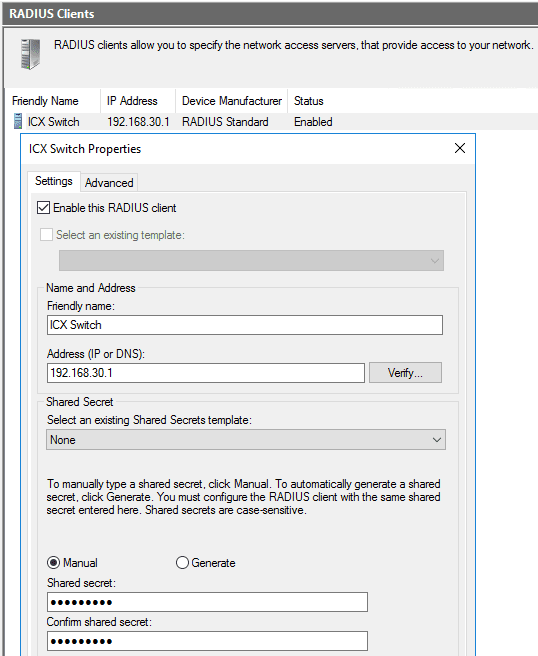
Define the Connection Request Policy
Create a wired connection request policy and restrict requests to Ethernet using the NAS Port Type condition. The default policy should be disabled or tightened so that the RADIUS server does not accept inappropriate requests.
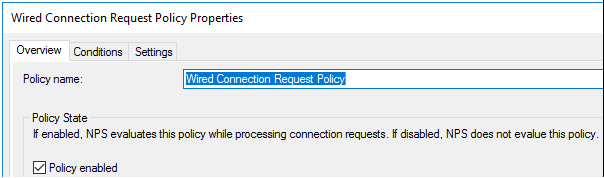
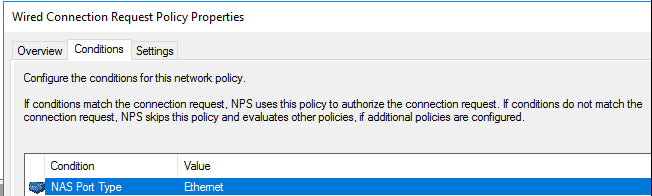
4. Create the MAC Authentication Network Policy
MAC authentication is used for devices that cannot perform 802.1X. This should be limited to approved device categories and should not be treated as a replacement for stronger authentication on managed endpoints.
Create a new network policy for MAC authentication and select the relevant user group created earlier.
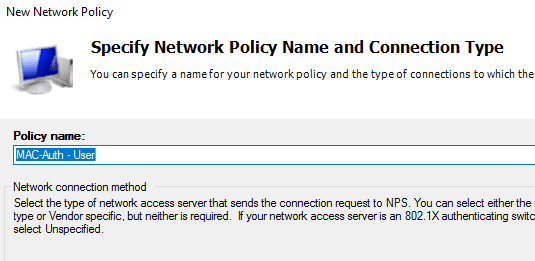
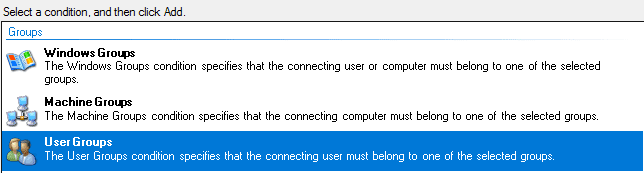
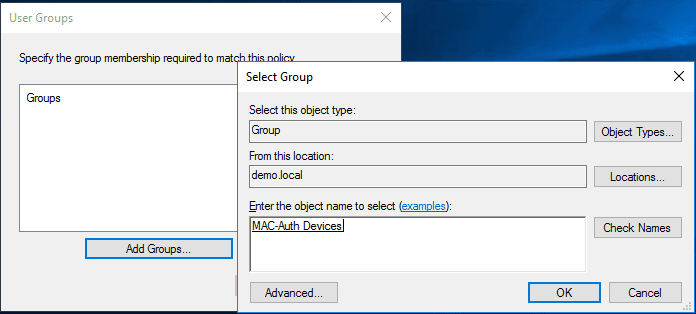
Add the NAS Port Type condition and select Ethernet.
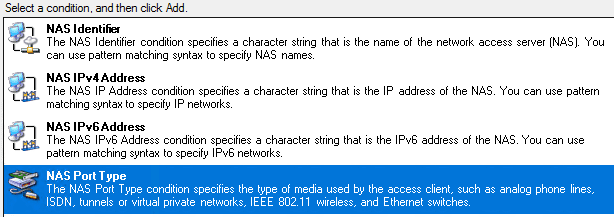
For the MAC authentication policy, configure the required authentication constraints. The source document used PAP/SPAP for MAC authentication. Use this only where required and restrict the policy carefully.
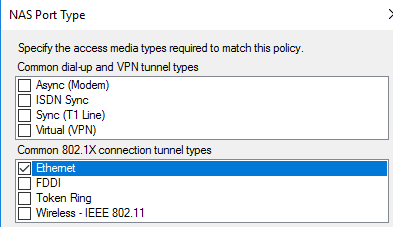
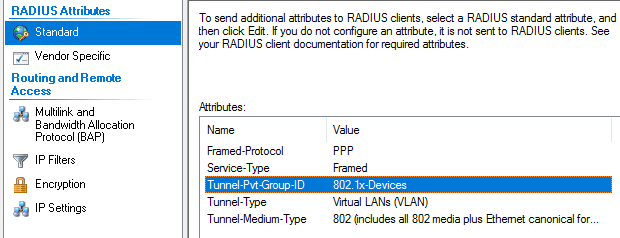
Next, configure the RADIUS standard attributes that return the VLAN assignment to the switch. The key attribute is Tunnel-Pvt-Group-ID. This must match the VLAN name or value expected by the ICX switch configuration.
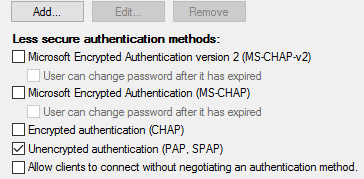
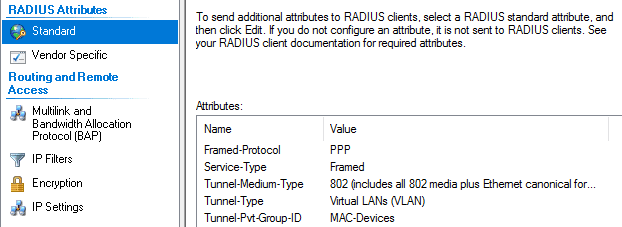
Finally, open the policy properties and tick Ignore user account dial-in properties.

5. Create the 802.1X machine authentication policy
For domain-joined devices, create a separate 802.1X policy using machine-based authentication. This allows managed Windows devices to authenticate using certificates and avoids maintaining MAC address records for standard domain computers.
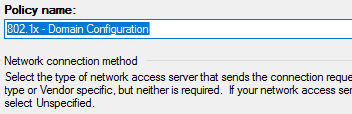
Use Machine Groups as the condition and select the Active Directory group that contains the domain-joined devices allowed to authenticate.
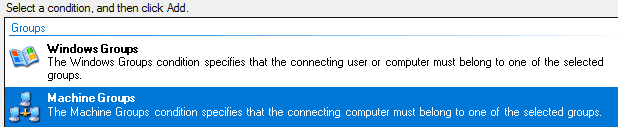
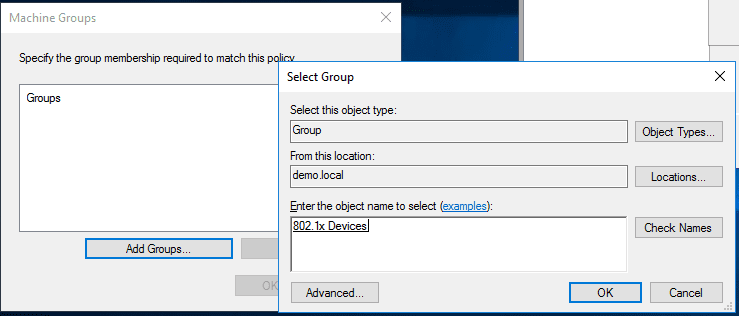
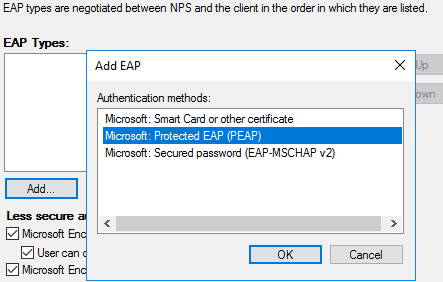
Again, restrict the policy to Ethernet using NAS Port Type. Then configure the EAP type and select Microsoft Protected EAP (PEAP).
Return the VLAN assignment using the RADIUS attributes. As with MAC authentication, make sure Tunnel-Pvt-Group-ID matches the VLAN expected by the ICX switch.
Enable Ignore user account dial-in properties for this policy as well.
Register NPS in Active Directory
Before NPS can read the required account information from Active Directory, register the server in Active Directory from the NPS console.
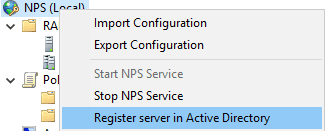
6. Configure Group Policy for Windows endpoints
Domain-joined Windows devices must be configured to use wired 802.1X authentication. Start by enabling the Wired AutoConfig service through Group Policy.
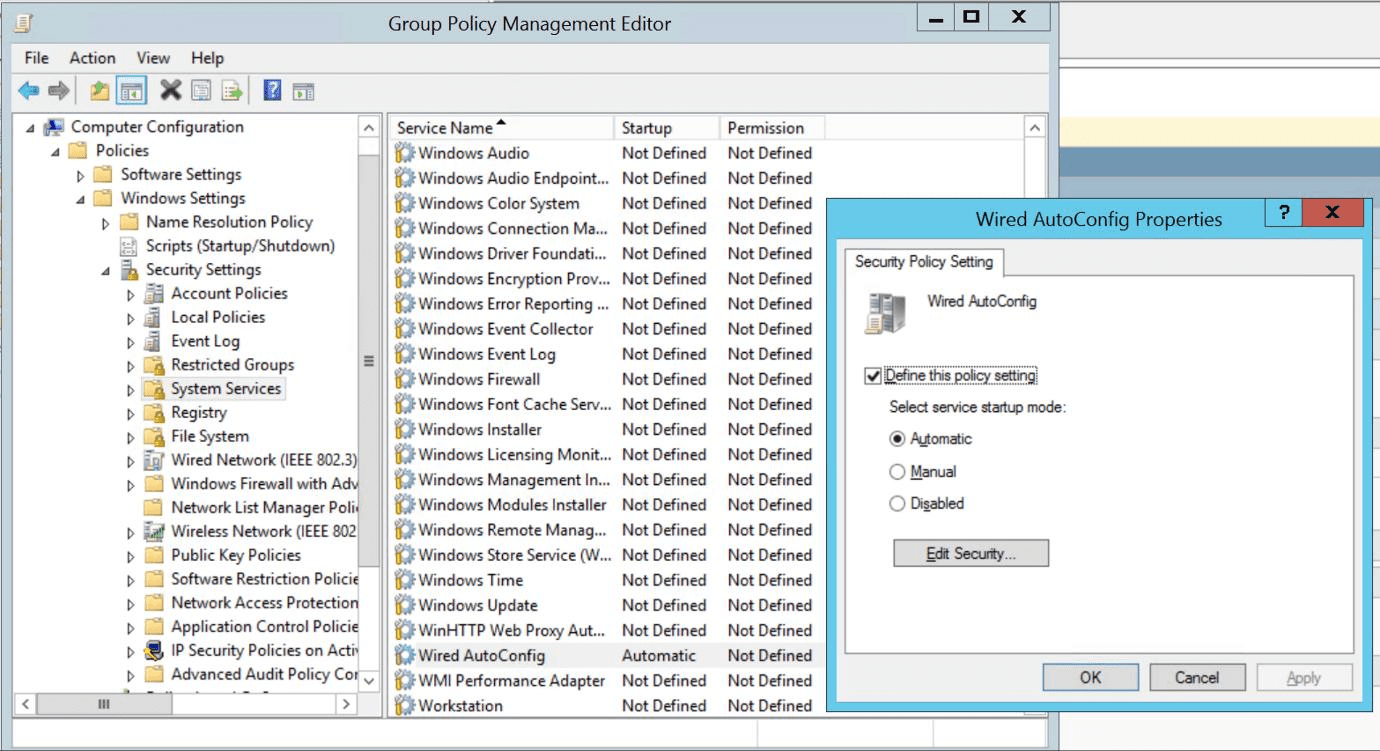
Next, configure the wired network profile under Group Policy so that Windows clients use the correct 802.1X and PEAP settings. Apply the policy to a pilot group first, then expand deployment once testing has been completed.
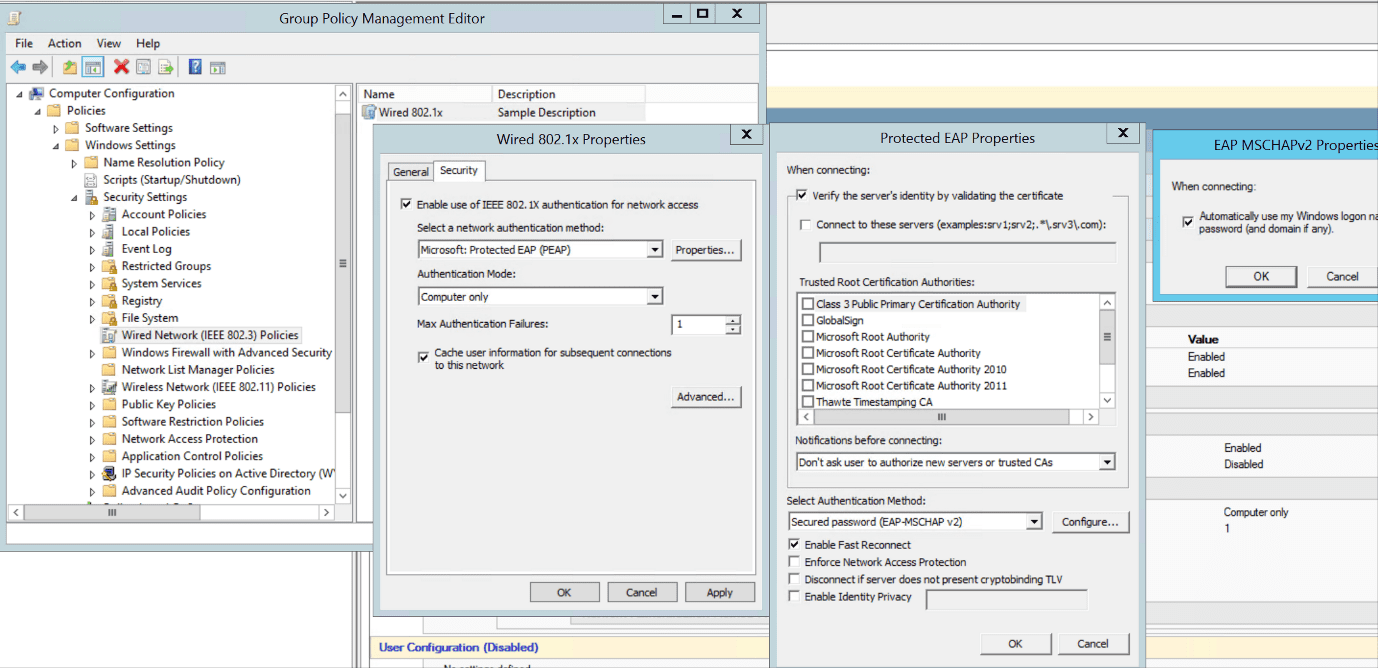
7. Configure the Ruckus ICX switch
The ICX configuration needs to define the client VLANs, authentication VLANs, 802.1X behaviour, MAC authentication settings and RADIUS server details. The examples below should be adapted to your live port numbering, VLAN names and IP addressing.
Define the client VLANs
Create the VLANs that clients will be placed into after authentication and tag them on the uplink ports.
vlan 10 name MAC-Devices by port
 tagged ethe 1/1/2
!
vlan 20 name 802.1x-Devices by port
 tagged ethe 1/1/2
Define the authentication VLANs
Create VLANs for unauthenticated or failed authentication states. These VLANs should usually be isolated and non-routable unless there is a clear requirement, such as device imaging or a remediation network.
vlan 900 name auth-default-vlan by port
 tagged ethe 1/1/2
!
vlan 901 name restricted-vlan by port
 tagged ethe 1/1/2
Enable authentication behaviour
Configure 802.1X and MAC authentication on the access ports. The example below enables authentication on ports 1/1/17 to 1/1/32.
authentication
 auth-mode multiple-untagged
 re-authentication
 auth-default-vlan 900
 restricted-vlan 901
 max-sessions 3
 auth-fail-action restricted-vlan
 dot1x enable
 dot1x enable ethe 1/1/17 to 1/1/32
 dot1x port-control auto ethe 1/1/17 to 1/1/32
 dot1x timeout tx-period 1
 dot1x timeout quiet-period 1
 dot1x timeout supplicant 1
 mac-authentication enable
 mac-authentication enable ethe 1/1/17 to 1/1/32
 mac-authentication password-override <Replace-With-Strong-Controlled-Password>
Configure RADIUS authentication
Enable RADIUS for 802.1X and define the NPS server details. Use your own server IP address, RADIUS ports and shared secret.
aaa authentication dot1x default radius
radius-server host 192.168.30.238 auth-port 1812 acct-port 1813 default key <Replace-With-Strong-Shared-Secret> dot1x mac-auth
Security note: never publish live RADIUS shared secrets or production passwords. Store secrets in your password manager and rotate them when engineers leave the business or if exposure is suspected.
Testing and rollout checklist
A staged rollout is strongly recommended. Start with a lab switch or a small pilot cabinet before enabling this across the production estate.
- Confirm that the Ruckus ICX switch can reach both NPS servers on the required RADIUS ports.
- Test one domain-joined Windows device and confirm successful 802.1X authentication.
- Test one approved non-domain device and confirm MAC authentication places it into the expected VLAN.
- Test an unknown device and confirm it is placed into the default or restricted VLAN.
- Review NPS logs and Windows Event Viewer entries during testing.
- Document the VLAN mappings, switch port ranges, RADIUS clients and certificate expiry dates.
- Pilot the Group Policy with a small device group before broad deployment.
- Have a rollback plan, including temporary known-good switch port configuration if a critical device fails authentication.
Why this matters
A secure wired access design gives schools, hospitality venues and businesses much better control over what can connect to their internal network. Rather than trusting anything plugged into a wall port, the network can authenticate the device, check policy and place it into the right VLAN automatically.
When designed correctly, this improves security, reduces manual administration and gives the IT team a stronger foundation for segmentation, auditing and compliance.
Need help with Ruckus ICX, 802.1X or network segmentation?
Elmdale IT Services designs, installs and supports secure wired and wireless networks for schools, hospitality venues and growing businesses. If you need help with Ruckus ICX switching, RADIUS, VLAN design, network automation or secure access control, our team can help plan, implement and support the solution end to end.
Contact Elmdale IT Services: www.elmdaleit.co.uk | sales@elmdaleit.co.uk | 0118 982 1444